A Beginner’s Guide
In the age of information overload, staying organized and extracting meaningful insights from a mountain of documents can feel like an uphill battle. Whether you’re a student tackling a thesis, a professional managing a complex project, or a researcher diving into a new field, the challenge remains the same: how do you synthesize vast amounts of data efficiently?
Enter Google NotebookLM—an AI-powered research assistant designed to transform the way you interact with your information. In this guide, based on Massively Easy AI beginner tutorial, we’ll walk you through how to set up your first notebook and leverage its most powerful features.
What is NotebookLM?
NotebookLM is not just another chatbot. Unlike general AI models, it is source-grounded, meaning it primarily uses the documents you provide to generate answers, summaries, and insights. This significantly reduces “hallucinations” and ensures that the information you receive is directly tied to your specific project.
Getting Started: Creating Your Workspace
To begin, head to the NotebookLM website and sign in with your Google account.
- Create a New Notebook: Think of a “notebook” as a dedicated workspace for a specific project. For example, if you are launching a new product, name your notebook accordingly.
- Add Your Sources: This is where the magic happens. You can upload PDFs, link Google Drive files, paste website URLs, or even link YouTube videos. NotebookLM will analyze these materials to build its knowledge base.
- Organize with Auto-tagging: If you have many documents, use the autotagging icon to let the AI automatically group related sources together, making your workflow much cleaner.
Powerful Features for Deep Analysis
Once your sources are in place, you can start interacting with your data in revolutionary ways:
1. Source-Grounded Chat
Instead of searching through hundreds of pages, simply ask questions in natural language. For instance, you could ask, *”What are the biggest risks mentioned across all the sources?”.
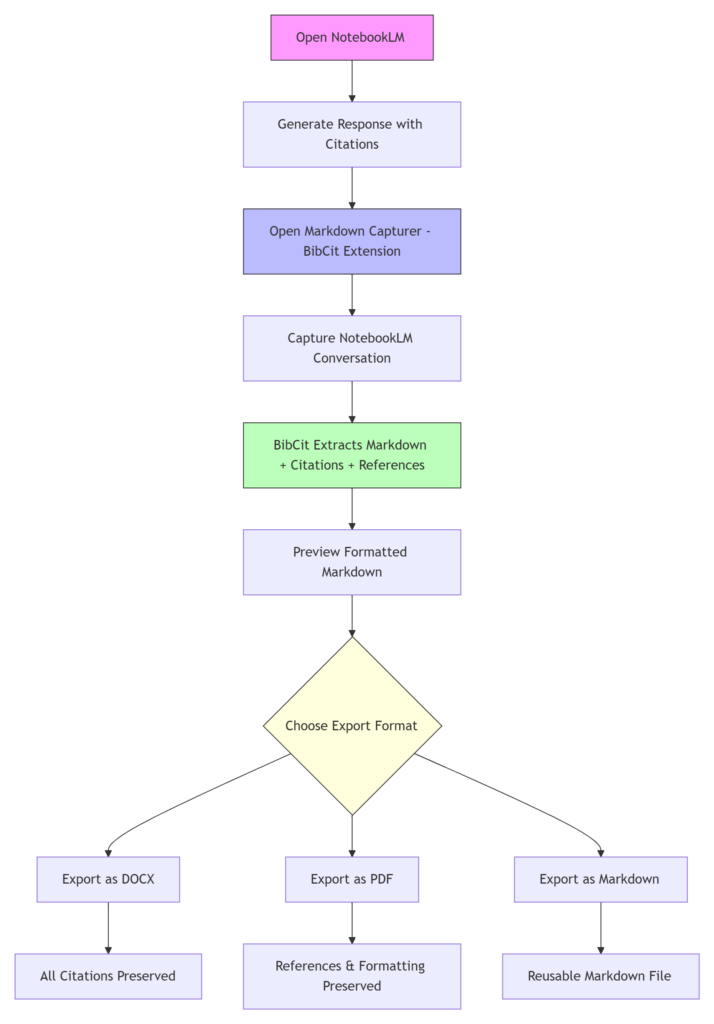
- Citations: One of the best features is that now you can include citation. Install Markdown capturer chrome plugin and select citation style.
2. The Studio: AI-Generated Artifacts
The “Studio” section allows you to convert your research into different formats:
- Mind Maps: Generate a visual landscape of your topic to see how different ideas connect.
- Audio Overviews: NotebookLM can create an AI-generated “podcast” where two voices discuss your sources, making it easy to consume your research while on the go.
- Study Guides & Reports: You can also generate flashcards, briefing docs, and detailed reports based on your specific selections.
3. Custom Notes & Collaboration
You can save AI responses as notes or write your own. These notes can then be converted back into sources, allowing the AI to learn from your own thoughts and feedback. Furthermore, you can share your notebook with colleagues or classmates, choosing between “Viewer” or “Editor” permissions to collaborate in real-time.
Pro-Tip: Verify Your Outputs
While NotebookLM is incredibly accurate because it sticks to your sources, it is always best practice to verify critical information—especially for professional research or academic work.
By using NotebookLM, you aren’t just reading documents; you’re having a conversation with your data. Ready to supercharge your research? Start building your first notebook today.