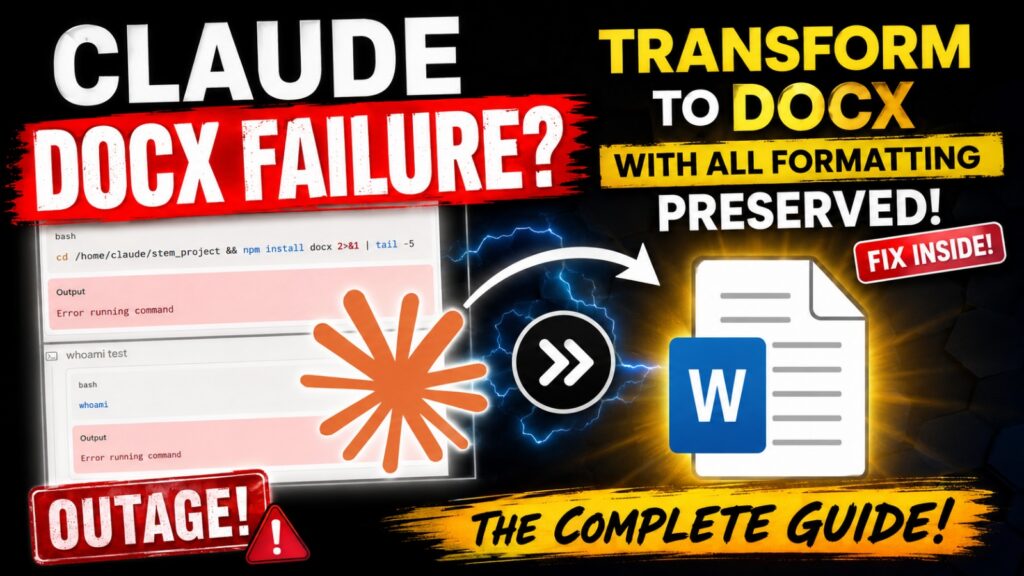
Claude to Docx Outage? How to Export Claude Chat to Word and PDF Instantly
If Claude suddenly tells you:
“The bash and file-creation tools have stopped responding in this environment, so I can’t generate the polished Word document for you right now…”
…you’ve hit a known Claude export failure.
This usually happens when Claude attempts to generate a .docx or .pdf internally using its code execution environment, but the underlying shell tools (bash, npm, file creation commands, etc.) fail repeatedly.
The result?
- Claude writes your content
- Claude promises “build the docx”
- Claude runs dozens of failed commands
- You get no Word file
- You waste time copy-pasting broken formatting into Microsoft Word
If you were searching for Claude to Docx, Claude export to Word, or Claude to PDF, there’s a much faster solution.
Claude to Docx: How to Bypass Claude’s Export Outage and Create Professional PDFs Instantly
If you’ve recently encountered an error message where Claude tells you its “bash and file-creation tools have stopped responding,” you don’t have to wait for the environment to recover. While Claude may be unable to “build the docx” internally right now, you can still transform your conversation into a polished document in under five seconds using MassiveMark.
Whether you need Claude to Docx for editing or Claude to PDF for professional distribution, here is the ultimate guide to maintaining perfect formatting even when AI tools fail. Instead of waiting for Claude’s internal environment to recover, use BibCit MassiveMark.
With MassiveMark, you simply:
- Copy Claude’s response
- Paste it into MassiveMark
- Download a fully formatted DOCX or PDF
No bash. No coding. No failed file-generation tools. No formatting disasters.
This is currently the easiest way to convert Claude to Docx properly.
Why Claude Fails to Create DOCX Files
Claude’s document generation often relies on temporary execution tools.
When these systems go down, you may see endless failures like:
echo test → Error running commandpwd && ls → Error running commandnpm install docx → Error running commandwhoami → Error running command
Claude may attempt dozens of retries before finally giving up.
Even if Claude successfully writes the content, the export pipeline fails.
That means:
Content exists – but document generation does not.
This is exactly why many users now prefer an external Claude-to-Word workflow.
Claude to Docx in 5 Seconds with BibCit MassiveMark
The easiest workflow:
Step 1: Copy Claude Response
Open Claude.
Click the Copy button on the response you want.
Claude outputs markdown-formatted content internally, which makes conversion clean.
Step 2: Open MassiveMark
Go to MassiveMark by BibCit.
Launch the editor.
Click the red MassiveMark icon.
Step 3: Paste Claude Content
Paste the copied Claude response.
MassiveMark automatically renders:
- headings
- tables
- bullet points
- numbered lists
- hyperlinks
- code blocks
- markdown formatting
Step 4: Export
Click Download.
Choose:
- DOCX (Microsoft Word)
- HTML
Done.
Your Claude to Docx conversion is complete.
Method 1: The High-Speed Copy (Workflow A)
This is the fastest way to export individual responses or Artifacts.
- Copy the Response: Look for the copy icon (typically a clipboard or two overlapping squares) at the top-right of Claude’s message bubble. Click it once to capture the full markdown formatting, including tables and math.
- Paste into MassiveMark: Go to the MassiveMark Playground. Click the red MassiveMark icon (a square with three vertical bars) in the top-left toolbar to open the input modal.
- Insert & Render: Paste your content (Ctrl+V) and click “Insert”. Your content will instantly render with all math equations, code blocks, and tables preserved.
Method 2: Converting Claude Markdown (.md) Files (Workflow B)
If you have long reports or full conversation exports, you can use Claude’s file export feature.
- Download from Claude: Select the “Download Markdown” or “Export as Markdown” option in Claude’s menu to save a
.mdfile to your computer. - Activate the Playground: Go to MassiveMark. The file upload button only appears after the playground is initialized. Click the red icon, type a simple placeholder like “hello,” and click Insert.
- Upload Your File: Click the red icon again. You will now see a “Browse for .md file” button. Select your downloaded Claude file and click Insert to load the entire document into the editor.
Why MassiveMark Works Better than Direct Paste into Word
Copying directly from Claude into Microsoft Word often breaks formatting.
Typical issues:
- broken tables
- missing borders
- destroyed spacing
- code blocks flattened
- markdown symbols visible
- equations rendered incorrectly
MassiveMark solves this.
Preserved Formatting
With MassiveMark, Claude content keeps:
✅ tables
✅ headings
✅ nested bullet lists
✅ hyperlinks
✅ code formatting
✅ markdown structure
Claude to PDF Conversion
Need PDF instead?
Same workflow.
Copy from Claude → Paste into MassiveMark → Download PDF.
Perfect for:
- reports
- assignments
- documentation
- client deliverables
- research notes
This makes Claude to PDF just as simple as Claude to Word.
Claude Math Equations to Word (Editable)
One major issue with AI exports is equations.
Many tools flatten equations into images.
MassiveMark preserves math properly.
Claude-generated LaTeX equations become editable Word equation objects inside DOCX.
This matters for:
- STEM assignments
- engineering reports
- physics notes
- mathematical documentation
If you need Claude equations to Word, this is a huge advantage.
Claude Tables to Word
Claude often generates structured tables.
Direct Word paste usually destroys them.
MassiveMark preserves:
- borders
- rows
- columns
- alignment
- formatting
Useful for:
- comparison charts
- research tables
- project plans
- client proposals
No Login Option (Quick Claude to PDF / DOCX)
Introducing MassiveMark Lite: No Login, No Credits
If you need a quick conversion and don’t want to sign up for an account, you can use the Lite version at https://www.bibcit.com/en/massivemark/free.
- No Login or Signup: Start converting immediately without an account.
- Zero Credit Consumption: This version is completely free for quick tasks.
- Web Preview: Offers a live preview and allows insertions of up to 5KB of markdown.
- Professional Export: Still allows you to download as Docx, PDF, or HTML.
If you need instant conversion without signup Use MassiveMark Lite.
Best for smaller Claude outputs.
Suitable for:
- short responses
- quick notes
- snippets
- mini reports
Free Credits for Larger Documents
Need bigger exports?
BibCit gives free starter credits after email verification.
Good for:
- long reports
- dissertations
- coursework
- technical documentation
Credits don’t expire.
Best Claude to Docx Workflow
Recommended process:
Claude writes content → Copy response → MassiveMark converts → Download DOCX/PDF
This avoids every internal Claude export failure.
No Web Extension Required for Claude
Unlike users of ChatGPT or Gemini, Claude users do not need to download the BibCit Markdown Capturer extension. Because Claude’s native interface already captures “true markdown,” you can move content directly into the MassiveMark Playground using only the platform’s built-in features.
Why MassiveMark is the Best Tool for Claude to Docx
Standard copy-pasting into Word often destroys your layout. MassiveMark ensures:
- Editable Equations: Math equations (LaTeX) are converted into fully editable Word equation objects, not just images.
- Lossless Tables: Tables retain their borders, structures, and cell alignments.
- STEM-Ready: It preserves everything from complex chemical formulas to hierarchical headings and code blocks with syntax highlighting.
Final Thoughts
Claude is excellent at generating content.
But when its execution environment fails, document export becomes unreliable.
If Claude says:
“build the docx later”
don’t wait.
For the fastest Claude to Docx and Claude to PDF workflow:
Copy from Claude. Paste into MassiveMark. Download professionally formatted files instantly.
That’s the practical workaround when Claude’s export tools are down.
Claim Your Free Credits
For users requiring the full version to save documents or handle larger files, BibCit offers 5 free credits (equivalent to roughly 50 pages of content) upon email verification.
- Sign Up: Create a free account.
- Verify: Click the link in your verification email to automatically claim your credits.
- Transparent Usage: No recurring subscriptions—just a pay-as-you-go system where credits never expire.
Stop wrestling with AI formatting outages. Move from Claude to Docx or Claude to PDF with professional precision today at BibCit.com. For support, contact bibcithelp@gmail.com or use the Live Chat.