Category: browser-plugin

  • Master Your Research with Google NotebookLM

    A Beginner’s Guide

    In the age of information overload, staying organized and extracting meaningful insights from a mountain of documents can feel like an uphill battle. Whether you’re a student tackling a thesis, a professional managing a complex project, or a researcher diving into a new field, the challenge remains the same: how do you synthesize vast amounts of data efficiently?
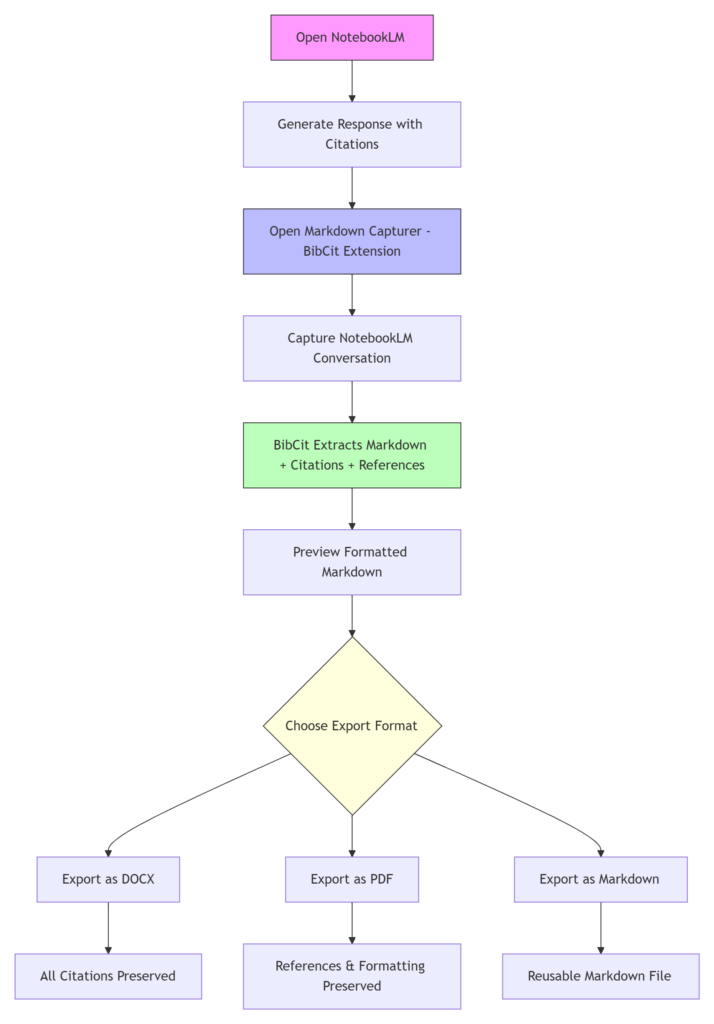
    Enter Google NotebookLM—an AI-powered research assistant designed to transform the way you interact with your information. In this guide, based on Massively Easy AI beginner tutorial, we’ll walk you through how to set up your first notebook and leverage its most powerful features.


    What is NotebookLM?

    NotebookLM is not just another chatbot. Unlike general AI models, it is source-grounded, meaning it primarily uses the documents you provide to generate answers, summaries, and insights. This significantly reduces “hallucinations” and ensures that the information you receive is directly tied to your specific project.

    Getting Started: Creating Your Workspace

    To begin, head to the NotebookLM website and sign in with your Google account.

    1. Create a New Notebook: Think of a “notebook” as a dedicated workspace for a specific project. For example, if you are launching a new product, name your notebook accordingly.
    2. Add Your Sources: This is where the magic happens. You can upload PDFs, link Google Drive files, paste website URLs, or even link YouTube videos. NotebookLM will analyze these materials to build its knowledge base.
    3. Organize with Auto-tagging: If you have many documents, use the autotagging icon to let the AI automatically group related sources together, making your workflow much cleaner.

    Powerful Features for Deep Analysis

    Once your sources are in place, you can start interacting with your data in revolutionary ways:

    1. Source-Grounded Chat

    Instead of searching through hundreds of pages, simply ask questions in natural language. For instance, you could ask, *”What are the biggest risks mentioned across all the sources?”.

    • Citations: One of the best features is that now you can include citation. Install Markdown capturer chrome plugin and select citation style.

    2. The Studio: AI-Generated Artifacts

    The “Studio” section allows you to convert your research into different formats:

    • Mind Maps: Generate a visual landscape of your topic to see how different ideas connect.
    • Audio Overviews: NotebookLM can create an AI-generated “podcast” where two voices discuss your sources, making it easy to consume your research while on the go.
    • Study Guides & Reports: You can also generate flashcards, briefing docs, and detailed reports based on your specific selections.

    3. Custom Notes & Collaboration

    You can save AI responses as notes or write your own. These notes can then be converted back into sources, allowing the AI to learn from your own thoughts and feedback. Furthermore, you can share your notebook with colleagues or classmates, choosing between “Viewer” or “Editor” permissions to collaborate in real-time.


    Pro-Tip: Verify Your Outputs

    While NotebookLM is incredibly accurate because it sticks to your sources, it is always best practice to verify critical information—especially for professional research or academic work.

    By using NotebookLM, you aren’t just reading documents; you’re having a conversation with your data. Ready to supercharge your research? Start building your first notebook today.
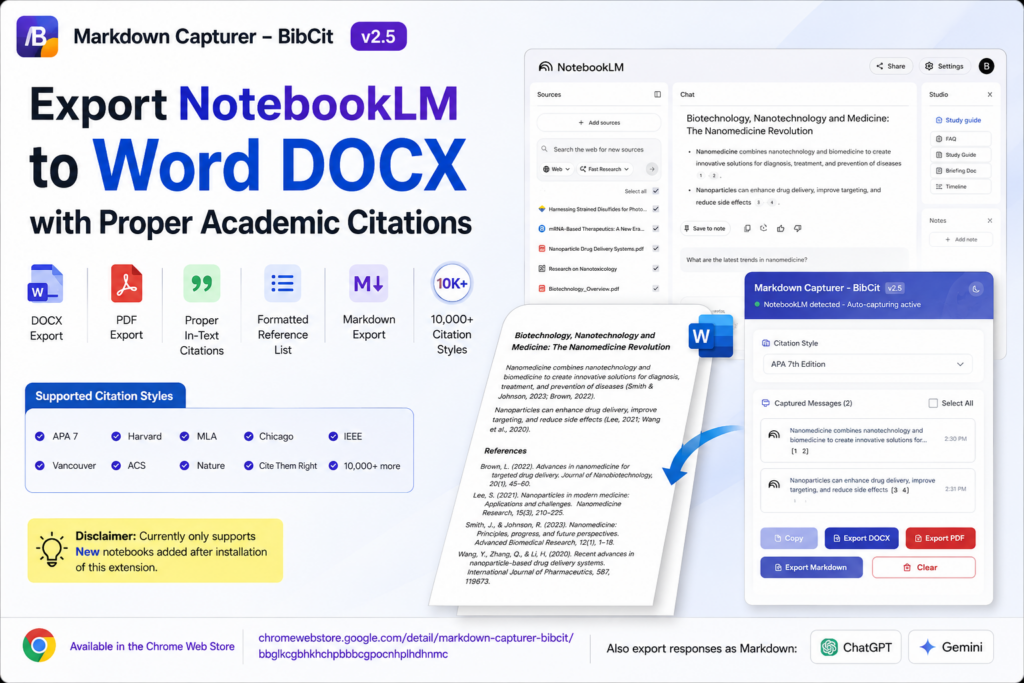
  • From Research to Publication: Markdown Capturer – BibCit v2.5 Introduces Full NotebookLM Support


    If you’ve been using Google NotebookLM for your research, you know it’s a game-changer for synthesizing information. However, you also likely know the “export headache”—the struggle of taking those brilliant AI insights and turning them into a properly formatted, cited academic paper.

    Today, that struggle ends. We are thrilled to announce that Markdown Capturer – BibCit v2.5 has officially launched, bringing seamless NotebookLM support to your workflow.


    What’s New in Version 2.5?

    This update is designed specifically for researchers, students, and academics who need to move from AI conversations to “publication-ready” documents in seconds.

    • Direct NotebookLM Capture: Capture your entire conversation with a single click.
    • Real In-Text Citations: NotebookLM’s inline numbered references are automatically converted into formal academic citations.
    • 10,000+ Citation Styles: Whether you need APA, MLA, Harvard, IEEE, Chicago, or Cite Them Right, we’ve got you covered.
    • Automatic Bibliography: A full reference list is generated at the end of your document, perfectly synced with your in-text citations.
    • Preserved Formatting: Export directly to DOCX or PDF without losing complex formatting or structure.

    Why This is a Game-Changer

    NotebookLM is incredible for deep dives into sources, but getting those notes into a usable Word document with accurate citations has been a manual, painful process.

    BibCit v2.5 removes the friction. You can now go from a NotebookLM response → Properly cited DOCX/PDF in seconds. No more manual cleanup. No more rebuilding bibliographies from scratch.

    One Tool, Many Platforms: In addition to NotebookLM, BibCit continues to provide industry-leading Markdown and citation support for ChatGPT and Gemini.


    See It In Action

    Want to see exactly how it works? Watch this quick tutorial to see how you can transform your research workflow:


    Ready to level up your research?

    Stop wasting hours on formatting and start focusing on your ideas.

    👉 Download Markdown Capturer – BibCit on the Chrome Web Store

    Thank you for being part of the BibCit community. We can’t wait to hear how this new update helps your research journey! ❤️


  • Mastering AI Exports: Why MassiveMark is the Essential Plugin for Gemini Users

    Mastering AI Exports: Why MassiveMark is the Essential Plugin for Gemini Users

    The era of Artificial Intelligence has fundamentally changed how we brainstorm, code, and write. Gemini, Google’s powerhouse AI, has become a go-to companion for millions. However, as any power user knows, there is a recurring friction point: getting that brilliant, formatted AI output into a professional document without it looking like a “copy-paste disaster.”

    Enter the MassiveMark plugin, a Chrome extension designed to bridge the gap between AI conversations and ready-to-use professional files. If you’ve ever struggled with broken tables, garbled math equations, or the “dark mode” background clinging to your text when pasting into Word, this plugin is the solution you’ve been waiting for.


    The Problem: The “Formatting Tax” of AI

    Working with AI should save time, but often, the formatting tax eats into those gains. When you copy a long response from Gemini into a standard word processor, several things usually go wrong:

    1. Code Blocks: They lose their syntax highlighting or get merged into standard text.
    2. Tables: Borders disappear, or columns misalign, requiring manual reconstruction.
    3. Mathematical Notations: Complex integrals, fractions, and symbols often turn into unreadable strings of text.
    4. The “Blob” Effect: The distinct visual hierarchy of headings and bullet points is flattened.

    The MassiveMark plugin was built specifically to eliminate these hurdles, offering a one-click transition from chat interface to polished document.


    Key Features of the MassiveMark Plugin

    The MassiveMark plugin isn’t just a simple “save as” button; it is a sophisticated formatting engine. Here is what makes it stand out:

    1. True One-Click Export to Multiple Formats

    Whether your workflow lives in the Microsoft ecosystem or Google Workspace, MassiveMark has you covered. You can convert Gemini content directly into:

    • Microsoft Word (.docx)
    • Google Docs
    • PDF
    • Markdown (.md)

    2. Math Equation Preservation

    One of the most impressive features of MassiveMark is its handling of technical content. It allows you to export math equations from Gemini to Word while preserving every symbol, fraction, and integral. For students, researchers, and engineers, this feature alone saves hours of manual LaTeX or Equation Editor work.

    3. Deep Research Integration

    With the rise of “Deep Research” capabilities in modern AI, users are generating massive, multi-page reports. The MassiveMark plugin supports exporting these extensive Gemini Deep Research Docs into structured Google Docs or PDFs, ensuring that even the most complex, long-form research remains organized.

    4. Flexible Export Options

    Not every export needs to be the same. MassiveMark gives you granular control:

    • Single Response: Just need that one clever poem or code snippet? Export it individually.
    • Full Conversation: Want to archive the entire brainstorming session? Export the whole thread.
    • AI-Only Mode: Export just the Gemini responses while automatically filtering out your own prompts—perfect for creating clean client deliverables.

    Use Cases: Who Needs MassiveMark?

    For Students and Academics

    Drafting a thesis or a lab report? Use Gemini to help structure your thoughts, then use the MassiveMark plugin to move that data into a PDF or Word document. The preservation of tables and math symbols ensures your academic integrity and formatting standards are met without the tedious manual re-typing.

    For Content Creators and Bloggers

    Writing a blog post (much like this one) often starts with an AI outline. By exporting to Google Docs via MassiveMark, you maintain your H1, H2, and H3 headers, allowing you to jump straight into the editing phase rather than the “fixing the font” phase.

    For Developers

    Exporting code blocks can be a nightmare. MassiveMark ensures that inline code and code blocks remain distinct and readable, making it an excellent tool for documenting your AI-assisted coding sessions or creating technical manuals.


    Privacy and Trust

    In an age of data concerns, the developers behind the MassiveMark plugin (Biblab) have prioritized transparency. The extension is a “Featured” item on the Chrome Web Store, boasting a high rating and a commitment to EU privacy standards. Your data is not sold to third parties, and the extension only handles the information necessary to perform the conversion.


    How to Get Started

    Setting up the MassiveMark plugin is a breeze:

    1. Install: Visit the Chrome Web Store and click “Add to Chrome.”
    2. Open Gemini: Navigate to your Gemini chat interface.
    3. Export: Look for the MassiveMark icons appearing near the AI responses.
    4. Select Format: Choose your preferred destination (Word, PDF, or Google Docs).

    Conclusion: Work Smarter, Not Harder

    The MassiveMark plugin is more than just a utility; it is a productivity multiplier. By removing the technical barriers between AI-generated insight and professional documentation, it allows you to focus on what really matters: the content.

    Stop wrestling with copy-paste formatting and start exporting like a pro. Whether you are archiving research, preparing a business proposal, or finishing a school project, MassiveMark ensures your work looks as smart as the AI that helped you create it.

    Ready to streamline your workflow? Download the MassiveMark plugin today and experience the future of AI document management.